Features
Live TV with your own playlist
Understand live playback in InoxTV: add your own source, choose channels, update the programme guide, use favorites and a TV remote, and troubleshoot buffering.
Last updated
InoxTV is a player. It does not provide channels, movies or shows; you add playlists from your own provider. Read the content disclaimer.
What live television means in a player
A live channel is an ongoing stream with a schedule decided by its source. When you select it, the player requests the stream and shows the point currently being delivered. That differs from opening an on-demand file, where you normally choose when to start and can move through the available duration. A channel name, logo or programme listing describes an entry; it does not mean InoxTV owns the programme or supplies the service.
The app brings your configured sources, channel lists and playback controls together. Availability still depends on the provider, the permissions attached to your account and whether its stream is reachable. The source also determines picture quality, audio languages and any seekable live window. A guide containing yesterday's listings is not an archive of yesterday's video, and displaying those listings does not give the player a recording to open.
Add the source you already have
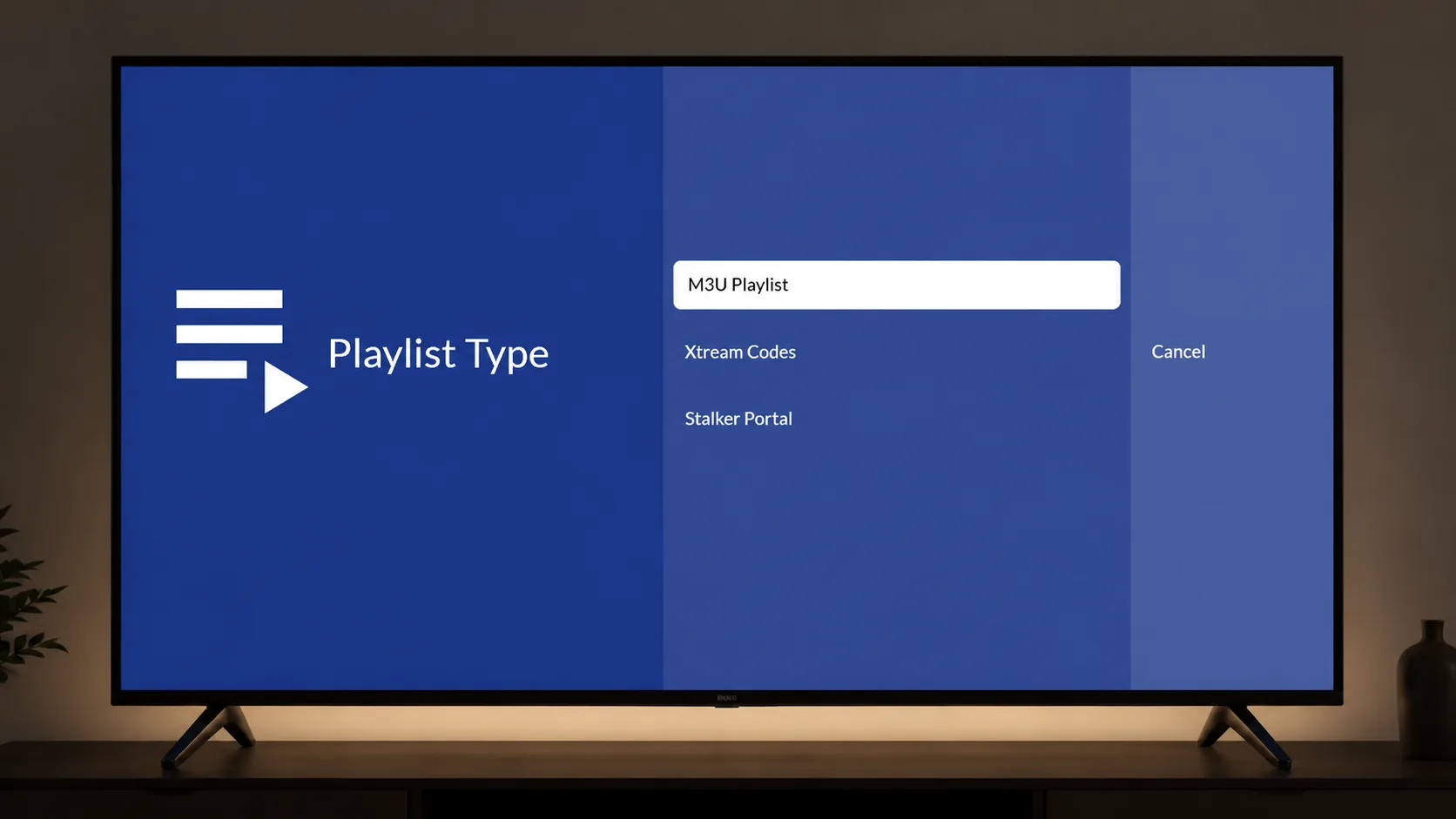
Start with the connection details supplied by a provider you are authorised to use. InoxTV accepts M3U playlists, Xtream Codes connections and Stalker portals. The playlist type guide explains the differences. Choose the type that matches your supplied details rather than guessing a server address or changing another person's account information. The app cannot create missing access rights or repair an expired provider account.
Open Settings, then Playlists, and add a playlist. Give it a name you will recognise if you later add a second source. An M3U source can be a supplied address or a local file selected through Android's file picker; the M3U setup walkthrough covers both. Keep provider credentials private, including when asking for help. Wait for importing to finish before deciding that a category or channel is absent.
Choose a category and start a channel
Once the playlist has loaded, open its channel list and choose a category or group. Group names and the entries inside them come from the source. Select a channel and confirm the selection to start playback. When several playlists are enabled, check which playlist you are browsing: similar names can describe different entries with different streams. An empty filtered list can simply mean that no channels match the current selection.
On a television, the directional pad moves focus through visible choices and the centre button selects the highlighted item. Inside a channel-list overlay, browsing and confirming are separate actions. Learn where the highlight is before pressing repeatedly. On a phone or tablet, use the corresponding touch controls. Both interfaces use the configured source, but their screen arrangement and input methods differ.
Load and update the programme guide
The electronic programme guide, or EPG, answers what is scheduled now and next. InoxTV reads that information from a configured guide source or from the provider's supported interface. It does not write programme schedules. Some connections supply listings alongside the channels; others need an XMLTV source. Begin with the source your provider recommends, since an unrelated guide can download successfully while matching few of your channel identifiers.
Use Settings, then TV guide, to manage guide sources and updates. Where a separate source is needed, attach it to the relevant playlist. The EPG setup guide explains the source, assignment and update controls. Let an update finish and read its result. Repeating a download cannot create programmes that the source has not published, and it cannot make different channel identifiers match.
Programme information can therefore be missing while video still plays correctly. Check the date, the affected playlist and whether only some channels lack listings. The missing guide data checklist helps separate source, matching and update problems. Treat programme times as source data rather than a promise of availability: schedule changes and incomplete provider information remain possible.
Favorites, switching and the TV remote
Add the channels you return to most often to Favorites. This creates a manageable selection without changing what your provider supplies. A favorite still points to its playlist entry, so it is not a saved video and does not preserve access if that entry becomes unavailable. If a list looks unexpectedly short, check whether a Favorites filter is active before refreshing or replacing the whole playlist.
With the default live-player mapping, Up and Down select the next and previous channels, Left opens the channel overlay, and OK brings up information and recent channels. Remote mappings can be changed, so a device with customised assignments may behave differently. Use the visible list when you want to inspect a name before changing playback. Opening menus, moving focus and switching channels are distinct actions even when the same directional buttons are used in different screens.
Make useful checks when playback pauses
Buffering means playback is waiting for enough media to continue. Compare another authorised channel from the same source and, if available, another configured source. This establishes whether the problem affects one stream or a wider connection. Check other network activity and the quality of the device's connection to the router. A fast internet plan does not by itself rule out an unstable wireless connection or a slow provider response.
Work through the buffering and stuttering guide one change at a time, keeping the test channel the same when comparing settings. Avoid treating every pause as a decoder fault. Prefer a provider's supported HTTPS address when one is available; changing the text of an HTTP address yourself does not make the server support HTTPS. A secure connection also does not guarantee uninterrupted delivery or grant permission to view a source.
Requirements and limits worth knowing
Use the appropriate InoxTV build for an Android phone or tablet, Android TV, or a supported Fire TV setup described on this site. You need your own working source, a network connection for remote streams and enough available device resources to load the playlist and guide. Playback compatibility depends on the stream and device; a visible listing is not a guarantee that every format will play on every screen.
Audio tracks, subtitles and seek controls depend on what the selected stream provides. Do not assume that a live channel supports rewinding, restarting earlier programmes or a complete archive. External-player actions are premium-gated and currently locked, so use the built-in player for this workflow. If a problem remains, describe the device, connection type and visible error without sharing a provider address, password or other private account details.