Inoxtv
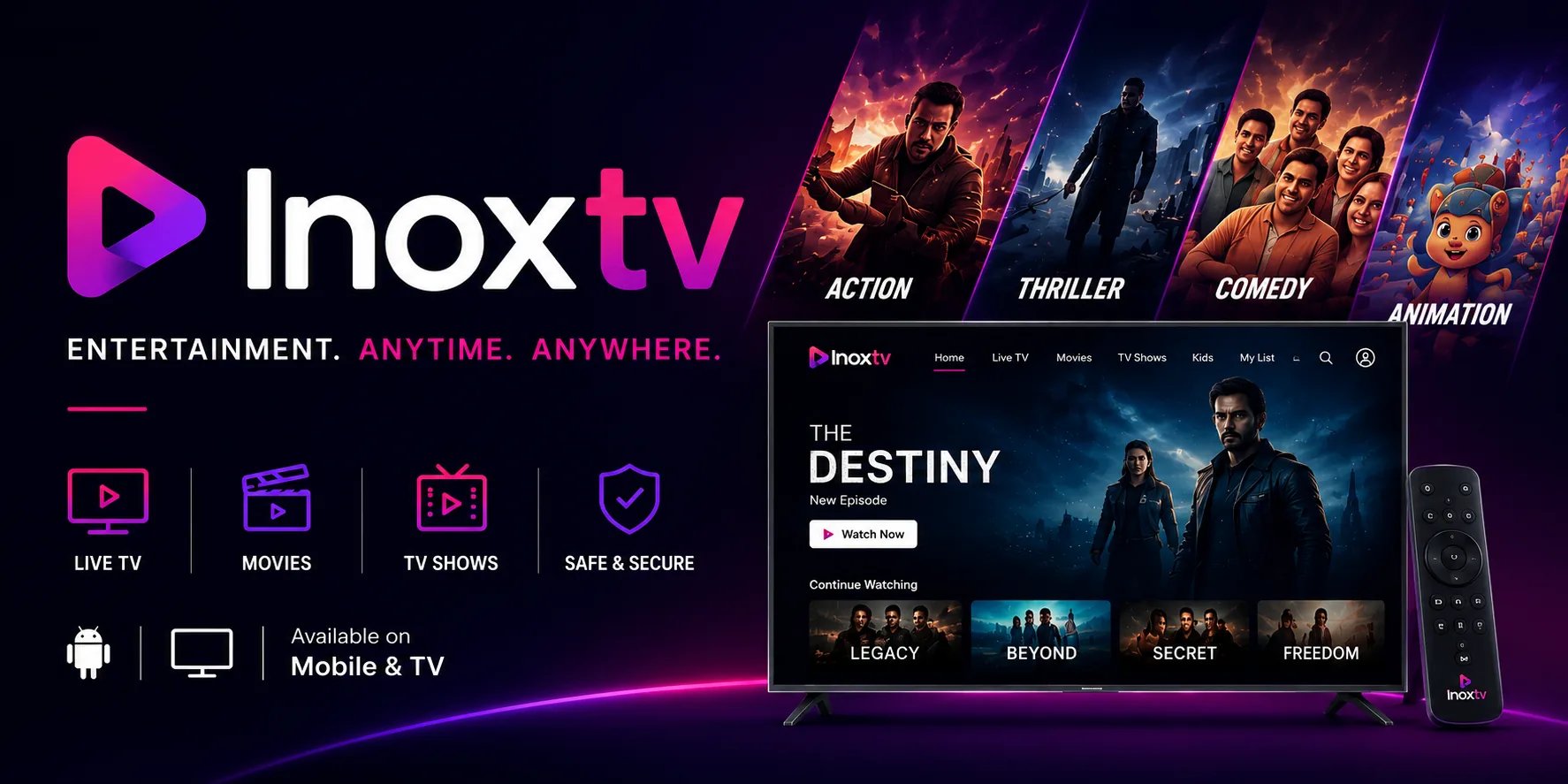
Entertainment. Anytime. Anywhere.
An IPTV player for Android phones, Android TV and Fire TV. Bring your own M3U, Xtream Codes or Stalker Portal playlist, and InoxTV takes care of the guide, the recording and the remote.
Built Around Your Playlist
The parts of the app you will actually use, each with a page explaining how it behaves and where it stops.
Live TV
The channel list, group filters, recent channels and number-key jumping, in whatever quality your playlist carries. How live TV works →
Movies & Shows
The on-demand half of an Xtream or Stalker playlist, with posters, descriptions and episode lists wherever the source supplies them. Browsing the catalogue →
TV Guide
Now, earlier and later for every channel your XMLTV source covers, with a jump straight from a programme to its channel. Reading the guide →
Search
One query across every enabled playlist, by typing or by voice, returning channels, films and shows together. What search covers →
Three Playlist Formats
M3U and M3U8 by URL or file, Xtream Codes, and Stalker Portal: several at once, in any mix. Which format to use →
Favourites & My List
Star the channels you actually watch, and keep films and shows in a list of their own. How both lists behave →
Recording
Record what is playing to a folder you pick, then play it back inside the app. Nothing records until the folder is set. Setting up recording →
Picture & Sound
Buffer size, hardware or software decoding, aspect ratio and scaling. The decoder switch fixes most streams that refuse to play. Playback settings →
Remappable Remote
Every D-pad direction, colour key and media key carries a short press and a long press, and all of them can be reassigned. Every key, with diagrams →
Parental PIN
A four-digit PIN over the settings screen, so a playlist cannot be swapped and your guide setup cannot be undone. What the PIN locks →
Themes & 19 Languages
Seven dark palettes, and the whole interface in 19 languages including Hindi, Arabic, Spanish and Ukrainian. Themes and languages →
Backup & Restore
Playlists, favourites, key mappings and settings into one file, and the same setup back on another device. What the file holds →
Available on Mobile & TV
Two builds, one feature set. The interface is laid out for touch on one and for a D-pad on the other.

Android Mobile
Touch-optimized interface designed for phones and tablets with gesture controls.
- Touch-optimized navigation
- Gesture-based controls
- Portrait & landscape modes
- Voice search integration
- Hardware or software decoding

Android TV
DPAD-optimized interface designed for big-screen entertainment with remote control navigation.
- DPAD remote control navigation
- Big-screen optimized layouts
- File explorer for local playlists
- Favourites and My list
- SMB network file support
See InoxTV In Action
Explore how InoxTV looks on both Mobile and TV. Two interfaces, one set of features.


Supports All Playlist Formats
Whichever of the three your provider hands you, InoxTV reads it. Not sure which you have?
M3U Playlist
Standard M3U and M3U8, by URL or from a file on the device. The most widely used format, and the one where you attach your own guide source. Add an M3U playlist →
Xtream Codes
Server URL, username and password. Brings live channels, films and series already sorted into categories, plus an account screen showing expiry and connection limits. Add an Xtream playlist →
Stalker Portal
Portal URL and MAC address, with optional serial and device ID. InoxTV presents itself as a set-top box so the portal hands over its channel list. Add a Stalker portal →
Available in 19 Languages
The whole interface, not just the menus. Pick one in Settings → Appearance or leave it following the device. Every language, and what stays untranslated.
InoxTV Help Centre
Written from the app itself, screen by screen. Where something is half-finished or behaves differently from how it reads, the page says so rather than leaving you to work it out.
Setup guides
Installing on a phone, an Android TV box or a Fire TV Stick, adding each of the three playlist types, and getting the guide to populate. In the order you need them. Open the guides →
Feature reference
One page per screen: what it does, which settings actually change something, and where a feature stops short of what its label promises. Open the reference →
Remote key reference
Every remappable key in the player, the TV guide and the on-demand catalogue, with the shipped default for both press and hold, drawn as D-pad diagrams. Open the key maps →
Troubleshooting
A channel that will not play, a playlist that will not load, stuttering, an empty guide. Each page starts from the symptom and works towards the cause. Open troubleshooting →
Frequently Asked Questions
Got questions? We've got answers. Here are the most common things people ask about InoxTV.
InoxTV is an IPTV player for Android phones, tablets, Android TV and Fire TV. It carries no channels of its own. You point it at a playlist you already have and it reads the streams, the categories and the guide references out of it: an M3U or M3U8 file or URL, Xtream Codes credentials, or a Stalker Portal address with a MAC. From there the app handles playback, the channel list, search, favourites, the programme guide and recording. Not sure which playlist type you have? Compare the three formats.
Yes. Both builds are free on Google Play, and there is no paid tier that unlocks the player. What the app does not come with is anything to watch. It is a player, so the playlist has to come from you, from whatever service or source you already use. Install it without one and you get an empty channel list and a prompt to add a playlist.
InoxTV supports all three major IPTV playlist formats:
- M3U / M3U8: Import via URL or local file. The most widely used format.
- Xtream Codes: Connect with server URL, username, and password for categorized live TV, VOD, and series.
- Stalker Portal: Connect using portal URL and MAC address with full STB emulation.
Yes, with the same playlist on each. Phones and tablets get the touch build; Android TV and Fire TV get the television build, which is designed around a D-pad rather than scaled up from the phone layout. They are two separate installs and nothing syncs between them on its own, but you do not have to type the details in twice: a backup file restores your playlists and settings onto the second device in one step.
Yes. The guide shows what is on now, what is coming up and what has already aired, and you can open a channel straight from a programme. The listings come from an XMLTV source you attach to the playlist rather than from InoxTV, so a channel the source does not cover shows nothing at all. When that happens the fix is a better source, not a setting in the app: setting up the guide covers the order the pieces have to be in, and no guide data works through an empty one.
On Android TV, yes. Every key carries a short press and a long press, and both are reassignable in Settings → Remote control, which keeps three separate maps: Player, TV guide, and Movies and shows. The shipped defaults are printed key by key on the remote control pages, so you can check what a button already does before you move it. Two actions in that list, Multiview and Picture-in-Picture, are not connected in this build, so a key assigned to either one does nothing.
There is no hard limit in the app, but five is the point where things stay quick. A single playlist can be very large on its own, and the cost of adding more shows up in four places:
- Loading. Every playlist is parsed at startup, so the wait before the channel list appears grows with each one.
- Guide refreshes. Each playlist can carry its own XMLTV source, and they are fetched and merged on refresh.
- Memory. Android TV boxes and older sticks have little to spare, and this is usually what you notice first.
- Auto-update scheduling. The more playlists are queued to refresh, the more likely one is still working when you open the app.
Tip: You can add playlists in any combination of formats. Two M3U playlists, two Xtream Codes and one Stalker Portal all work side by side.
InoxTV includes a built-in backup and restore feature. Go to Settings → General, where Backup data and Restore data sit together, and write a backup file holding your playlists, favourites, key mappings and settings. Restoring it on another device rebuilds the same setup. What the file contains lists exactly what travels and what does not.
There is a four-digit PIN, and it is a configuration lock rather than a content filter. It closes the settings screen, or just Settings → Playlists and Settings → TV guide if you would rather leave the rest open, so a playlist cannot be swapped, your guide setup cannot be undone and the lock cannot be turned off without it. It does not restrict what plays: the Group options and Channel options entries in that list store your choice but nothing reads them in this build. The PIN is kept as a SHA-256 hash, so there is no recovery route. What the PIN locks spells out both halves.
InoxTV supports 19 languages for the full application interface: English, Hindi, Arabic, French, German, Spanish, Russian, Turkish, Italian, Dutch, Polish, Portuguese, Bulgarian, Greek, Danish, Swedish, Slovak, Ukrainian, and Indonesian. The app follows your device language on first launch and you can override it at any time. Themes and languages lists every option, and notes that guide listings stay in whatever language the source publishes them in.
Fire TV devices don't carry the Google Play Store, so InoxTV is sideloaded instead:
- Install the free Downloader app from the Amazon Appstore.
- Turn on Settings → My Fire TV → Developer Options → Apps from Unknown Sources.
- Open Downloader, enter code 2910810, and press Go.
- Choose Install once the APK finishes downloading.
You can also grab the APK directly from the Fire TV section above. The same build works on the Fire TV Stick, Fire TV Cube, and generic Android TV boxes.
The Downloader app code for InoxTV is 2910810. Enter it in the Downloader app on your Fire TV Stick to fetch the official Android TV APK. The code points at our signed release build on GitHub. It is the same file as the direct APK link on this page, with no modifications or bundled extras.
Start Streaming Today
InoxTV is free on Google Play for both Android Mobile and Android TV. Have your playlist details ready, because the app needs one before there is anything to watch.
On an Amazon Fire TV Stick? Use Downloader code 2910810 or grab the APK →
Install on Fire TV Stick
No Play Store on your Firestick? Use the Downloader app code below, or download the Android TV APK directly. The full walkthrough, with what to do when a step fails.
Downloader App Code
Open the Downloader app on your Fire TV Stick and enter this code:
- Install Downloader from the Amazon Appstore.
- Enable Apps from Unknown Sources in Settings → My Fire TV → Developer Options.
- Enter the code above and press Go.
- Choose Install when the APK finishes downloading.
Direct APK Download
Prefer to sideload yourself? Download the latest InoxTV Android TV APK straight from our GitHub releases.
- Works on Fire TV Stick, Fire TV Cube & Android TV boxes.
- Official signed release build — no modifications.
- Transfer with Downloader, Send Files to TV, or a USB drive.