Features
On-demand movies and series with InoxTV
Explore your own on-demand source in InoxTV: categories, name search, seasons, episodes, local resume progress, My List and practical playback checks.
Last updated
InoxTV is a player. It does not provide channels, movies or shows; you add playlists from your own provider. Read the content disclaimer.
What an on-demand catalogue means here
On-demand viewing starts with an item you choose rather than the current point in a scheduled live channel. A movie is usually one playable entry. A series may be described as a show containing seasons and episodes, each with its own playback item. InoxTV presents the information received from your source and opens the selected media. It does not provide a library, select a provider for you or give you rights to the listed content.
The distinction between a listing and a working file matters. A catalogue can still show a poster after its source has changed or removed the underlying media. A description, rating or episode count is information from that source, not an independent availability check by InoxTV. Use a provider whose content you are authorised to access, and ask that provider about missing entries, account restrictions or incorrect catalogue information.
Connect a source that describes your library
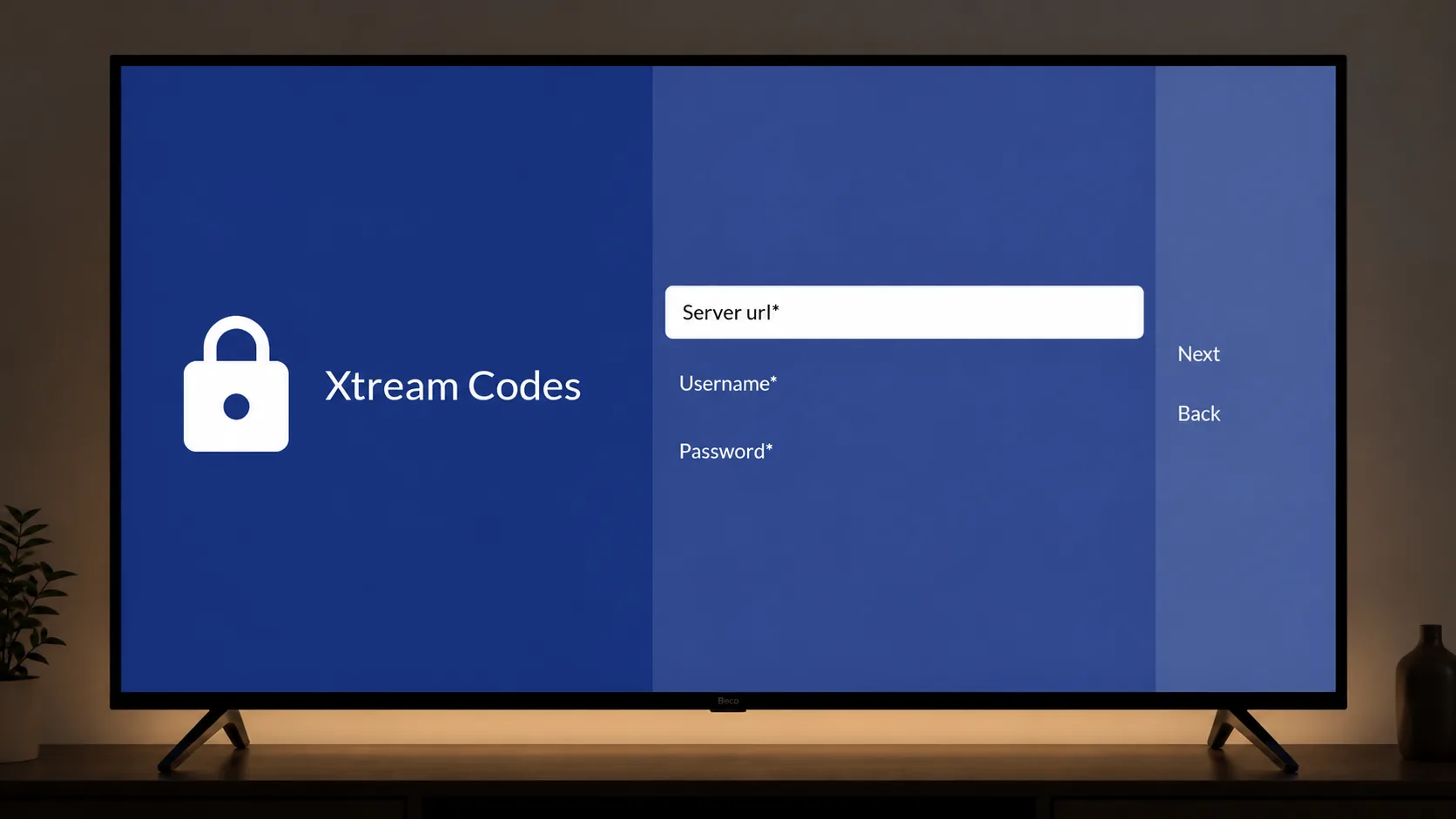
Before configuring the app, identify the connection type your provider actually supports. The playlist comparison explains M3U, Xtream Codes and Stalker Portal. Provider interfaces can describe separate movies and series, including seasons and episodes where supplied. Follow the Xtream Codes setup guide or the Stalker Portal walkthrough for the details you were given. Do not reuse another person's access information.
M3U is a flatter list of media entries. The current importer can classify some entries as movies or series, so it would be inaccurate to say every M3U entry must appear only as live television. However, classification does not guarantee a complete series hierarchy or detailed metadata. A playlist label alone cannot create missing seasons. Compare what the provider supplies before treating a simpler catalogue as a playback fault.
Find an item through categories and search
After the playlist has loaded, open the movies or shows section and choose the relevant playlist. Browse a provider category when you want a smaller group of entries, or the broader catalogue when you are unsure where an item belongs. Categories reflect the source's organisation. Similar names in different playlists can refer to different media, so check the selected source before comparing results or reporting that an entry has disappeared.
Search is useful when you know part of a title's name. Use a short, distinctive part of the name as the source spells it, then inspect the matching entries. Locally stored entries are searched by name; some portal searches also depend on the provider's server. Do not assume a plot description, performer or programme topic will match. An empty result can mean different spelling, incomplete imported data or an unresponsive source.
On Android TV, move the focus with the directional pad and confirm the highlighted card to open its details. On a phone or tablet, use the corresponding touch controls. Browsing a card and starting playback are separate steps, which gives you time to check the selected entry. If catalogue information is still loading, wait for the response before repeatedly opening the same category or changing several settings.
Play a movie or choose a season and episode
A detail screen presents the information available for the selected entry and its playback actions. Start a movie with Play. For a series that has a supported hierarchy, open the desired season and choose an episode. Episode names, numbering and order depend on the source. If a season looks incomplete, compare the provider's supplied catalogue rather than assuming the player can reconstruct the missing sequence.
During on-demand playback, seeking moves within the file's available duration instead of selecting another live channel. Audio and subtitle choices appear only where supported by the media and player. A poster does not tell you which audio tracks a file contains. The external-player action is premium-gated and currently locked; the workflow described here uses the built-in player and does not depend on an external application.
Resume progress and viewing history
InoxTV stores on-demand playback progress in its local app database. Returning to a partially watched item can therefore offer Resume rather than starting from the beginning. For a series, saved progress identifies the relevant episode. Check that episode before continuing, especially if more than one person uses the same device. A progress marker describes what was played locally, not a provider-wide account history.
The record belongs to this installation on this device. A movie paused on a phone should not be expected to resume at the same point on a television automatically. Clearing app data can remove that history and saved progress. Changes to a provider's item identifiers can also affect which entry a record refers to. Keeping progress does not download the media or guarantee that the source will still serve it next time.
Use My List for a manageable shortlist
Add to My List keeps an item among your favorites so you can return without searching the whole catalogue again. Removing it from your list changes your shortlist, not the provider's catalogue. This is useful when there are many entries with similar names or when you want to remember several items before deciding what to play. Keep the list selective enough that it remains quicker to browse than the original category.
A favorite, a saved playback position and a downloaded file are different things. My List does not store a copy of a movie or episode, reserve access or prevent a provider from removing it. If an entry stops working, check the source rather than repeatedly removing and adding the favorite. Also check the active playlist when a familiar title seems absent from the view you have opened.
Large catalogues, metadata and buffering
Large catalogues take work to fetch and display, especially on devices with limited memory. Use a category or a specific name search to narrow the list. Posters and descriptions may arrive separately from playable entries, and a missing image does not by itself mean the media is unavailable. Conversely, a complete-looking card does not prove the file is reachable. Refreshing repeatedly cannot correct inaccurate metadata at its source.
If playback starts but keeps pausing, follow the buffering checks while comparing the same item after each change. If one item will not start at all, the playback failure checklist also helps distinguish delivery, access and device problems for on-demand media. A decoder setting cannot restore an expired account or a removed file. Prefer a supported HTTPS source when your provider offers one, without assuming every configured connection is encrypted.
Requirements and practical limits
Use the appropriate InoxTV build for your Android phone, tablet, Android TV or supported Fire TV setup. You need an authorised source, a working network connection for remote media and enough available device resources to load its catalogue. Compatibility depends on the actual stream format and the device. No catalogue count, poster or label guarantees that every listed item will play on every device.
When seeking help, describe whether the problem affects browsing, an episode list, starting playback or continuing after a pause. Include the visible error and device type, keeping provider addresses and account details private. That distinction helps separate missing information from delivery problems and local playback limits. It also avoids changes that cannot address the fault, such as replacing an entire playlist because one provider poster failed to load.